One delivery, or several stops
By default a calculation assumes One delivery — everything unloaded in one place. Switch to Several stops and each product gets a stop number; stop 1 is unloaded first, so it's loaded nearest the doors.
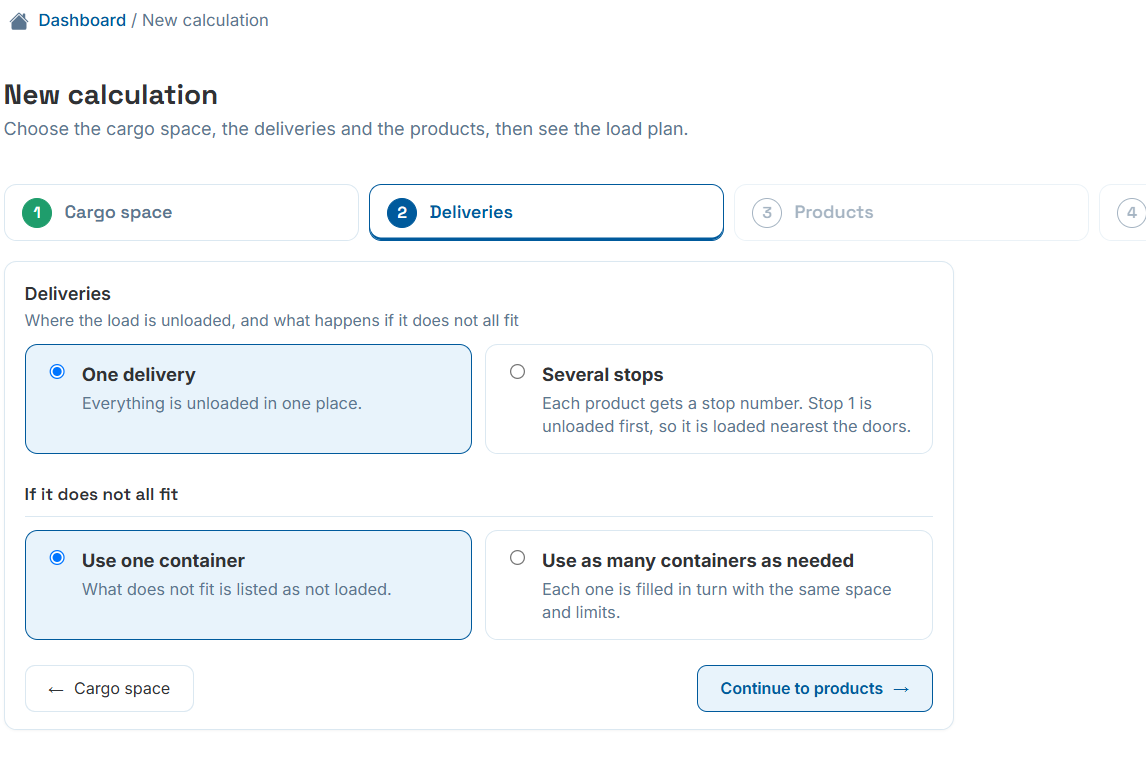
Step 2 of 4 — Deliveries: choosing several stops.
Set the route, then assign each product
Choosing Several stops adds a Number of stops field. From here, every product row on the Products step gets a Stop dropdown — see Product Advanced Settings — so planning a multi-drop route is just a column, not a separate tool.
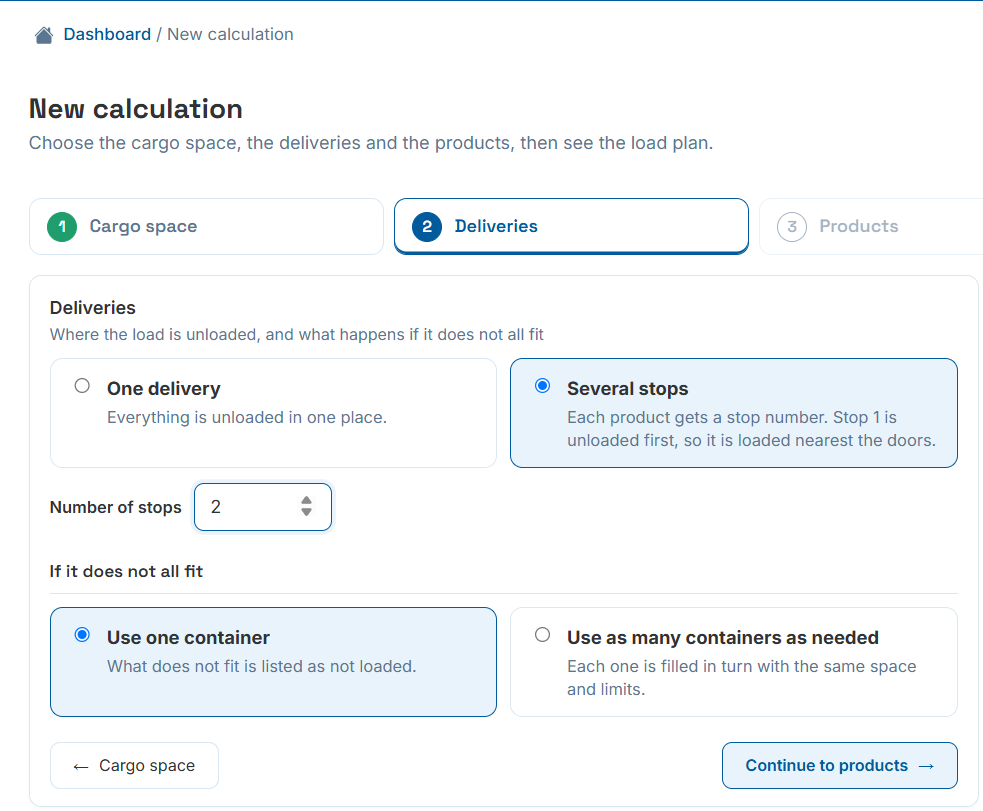
Number of stops, set once for the whole route.
A Stop column right alongside size and quantity
Assigning a stop takes no extra screen — it's a dropdown on the same row as length, width, height, weight and quantity.
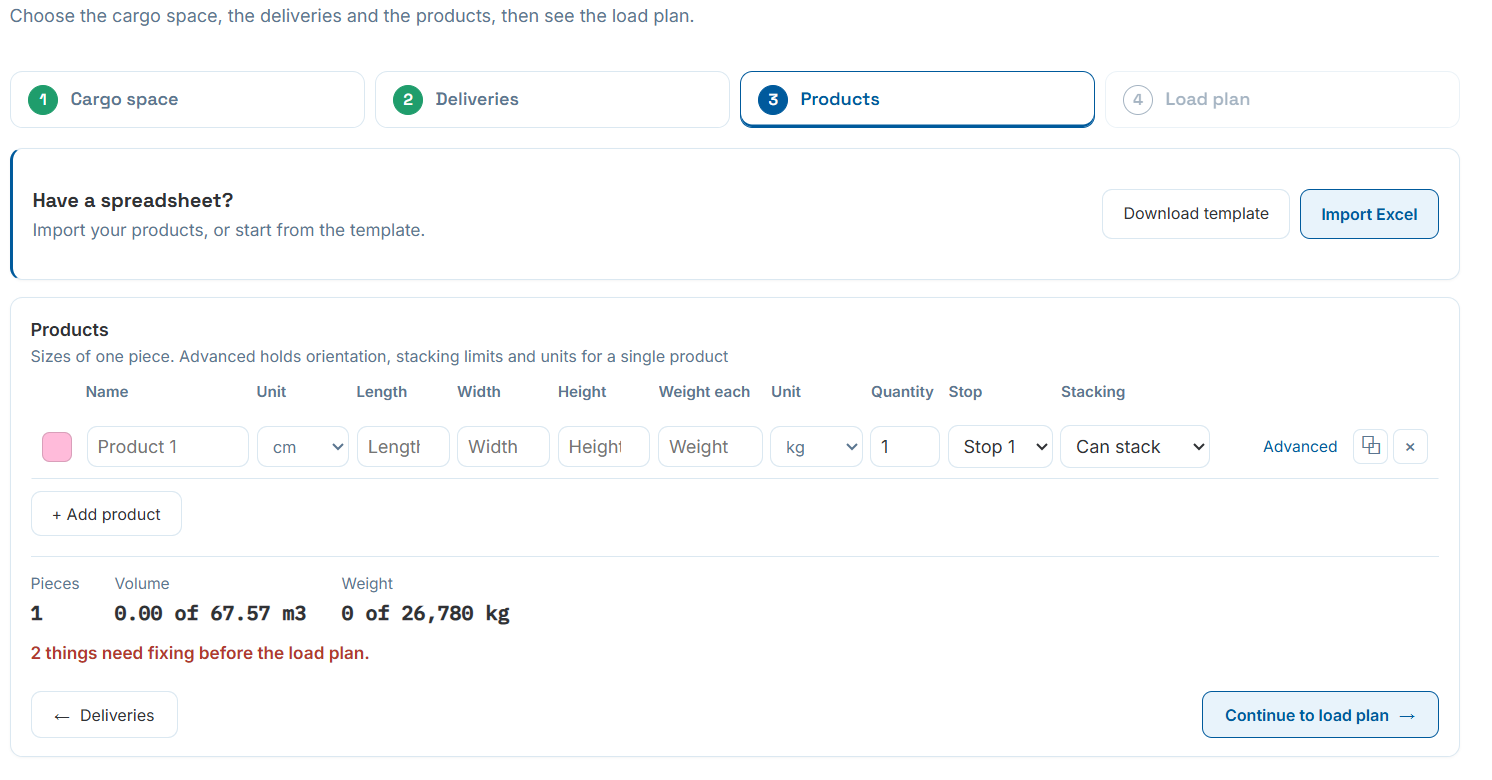
Step 3 of 4 — Products: Stop 1 assigned right on the product row.
Exactly what gets unloaded, where, and whether anything blocks it
The result includes a Delivery order table: unloaded order, stop name, pieces, weight, position from the closed end, and an access flag. "Clear" means nothing blocks that stop's unload — if it doesn't say clear, something loaded after that stop is sitting in the way.
- Stops are listed in unloading order, matching how they'll come off the truck.
- Position from the closed end is given as a range in millimetres, so loaders know exactly where each stop's cargo sits.
- An OK badge at the top confirms the whole delivery order is loadable without conflicts.
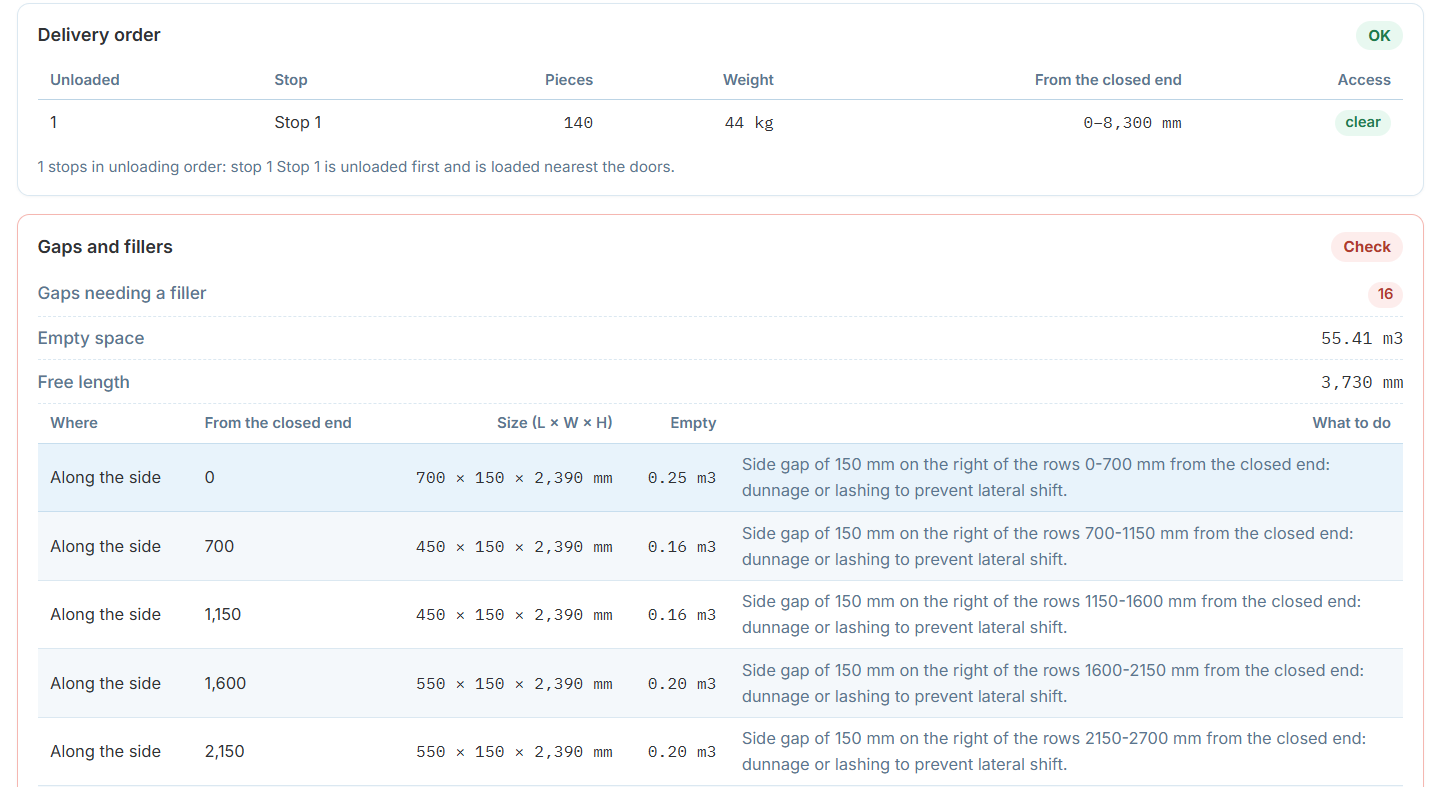
Delivery order, and the gaps-and-fillers report that comes with it.
Every empty pocket, with what to do about it
Splitting a load by stop naturally leaves gaps between blocks of cargo. Cargo Load Planner lists every one worth knowing about: where it is, its position from the closed end, its size, how much volume it wastes, and a concrete suggestion — dunnage or lashing to prevent lateral shift.
A summary line up top totals how many gaps need a filler, the total empty space, and the free length remaining, so you can judge at a glance whether the route is worth tightening up.