Start from the same picker, every time
Every calculation begins on the same Cargo space step: choose a Container, Pallet or Truck, filtered by group, or add a custom size for a one-off job. The panel on the right shows exactly what will be used — inside dimensions, space for cargo and payload — before you continue.
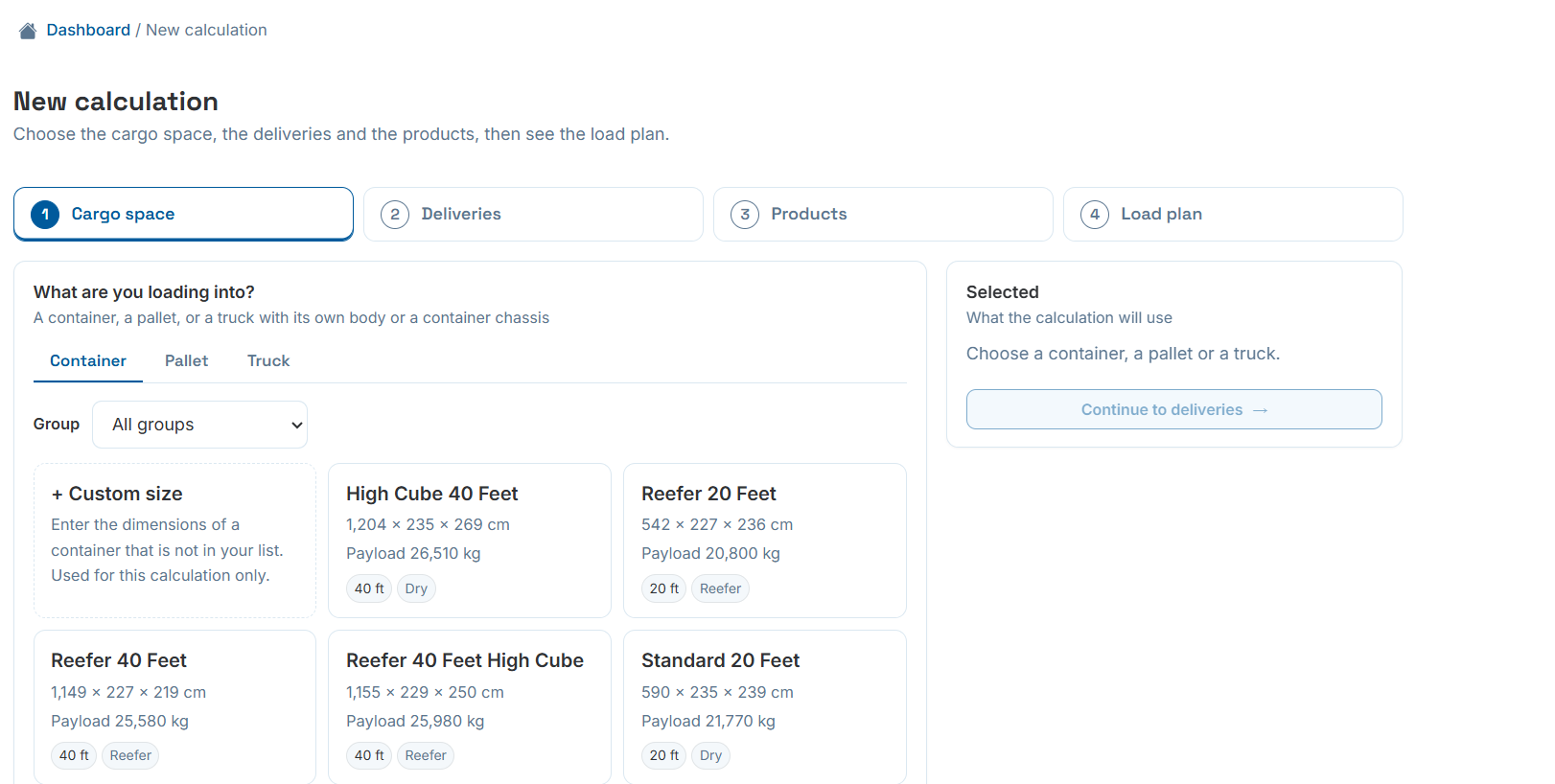
Step 1 of 4 — Cargo space: Container, Pallet or Truck.
Filling and balance rules, visible before you calculate
Once a container is picked, the panel also shows which filling strategy and balance settings will apply — "From your account settings," with a direct link to change them for just this calculation.
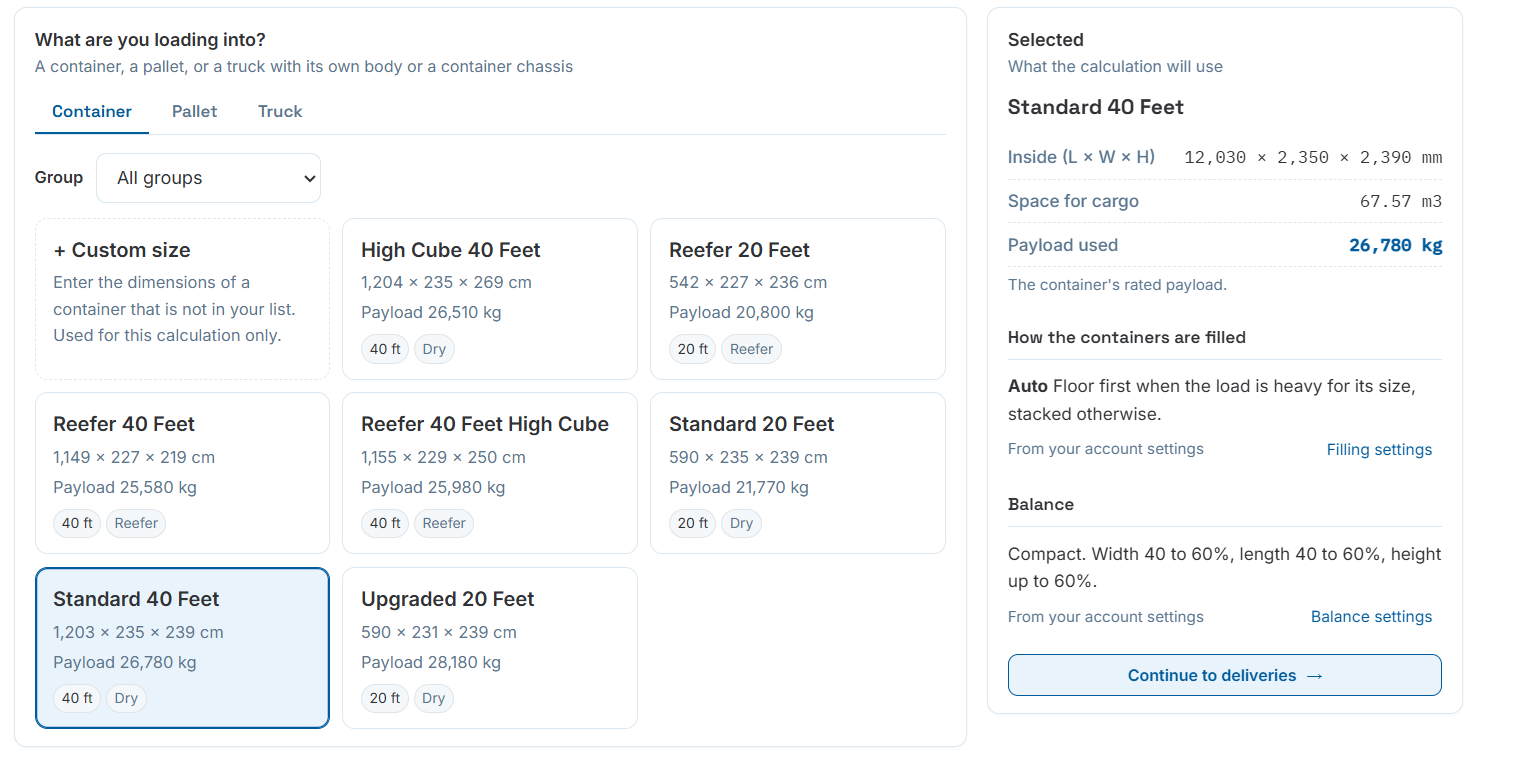
The selected container, with its filling and balance rules shown up front.
Choose what happens if it doesn't all fit
On the Deliveries step of a new calculation, "if it does not all fit" offers two paths: Use one container, where anything left over is listed as not loaded, or Use as many containers as needed, where each one is filled in turn with the same space and limits.
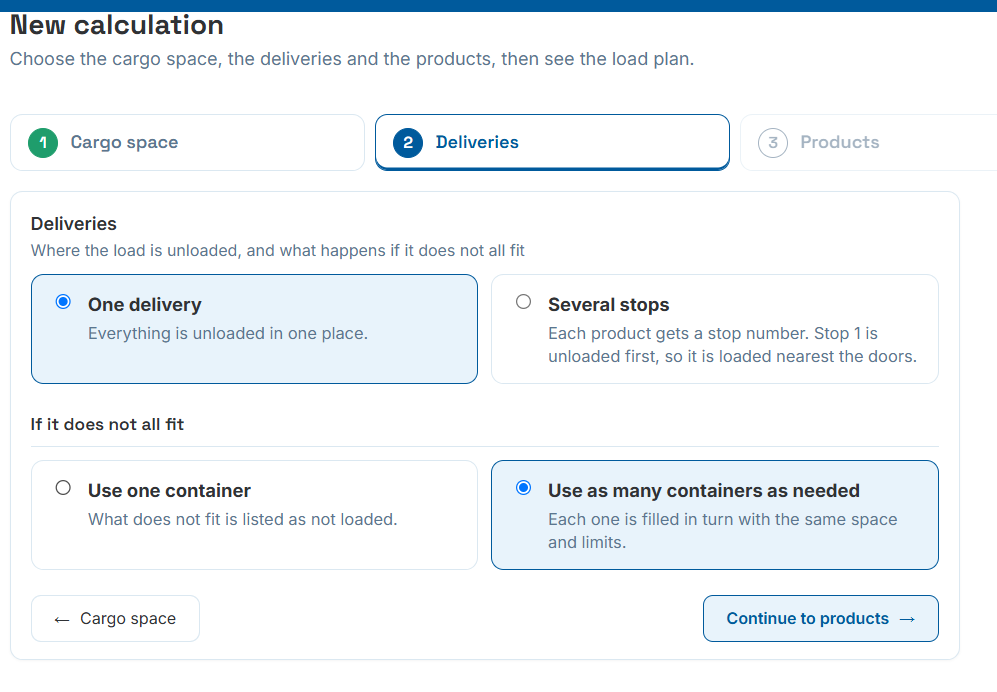
Step 2 of 4 — Deliveries: choosing how overflow is handled.
Page through every container, one at a time
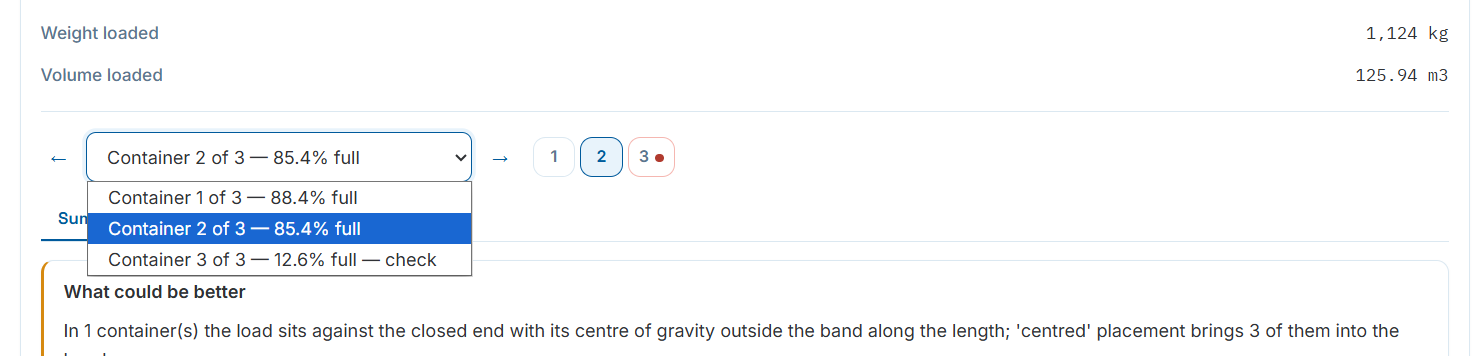
Once the plan is calculated, a dropdown and a row of numbered pills let you jump between containers. Each one shows its own fill percentage right in the selector, and a red dot flags any container that needs a closer look.
- "Container 1 of 3 — 88.4% full" style readout, updated per container.
- Numbered pills (1, 2, 3…) for quick jumps, with a warning dot on containers flagged by the balance check.
- A container running at just 12.6% full and flagged "check" is exactly the kind of thing this view catches before it ships.
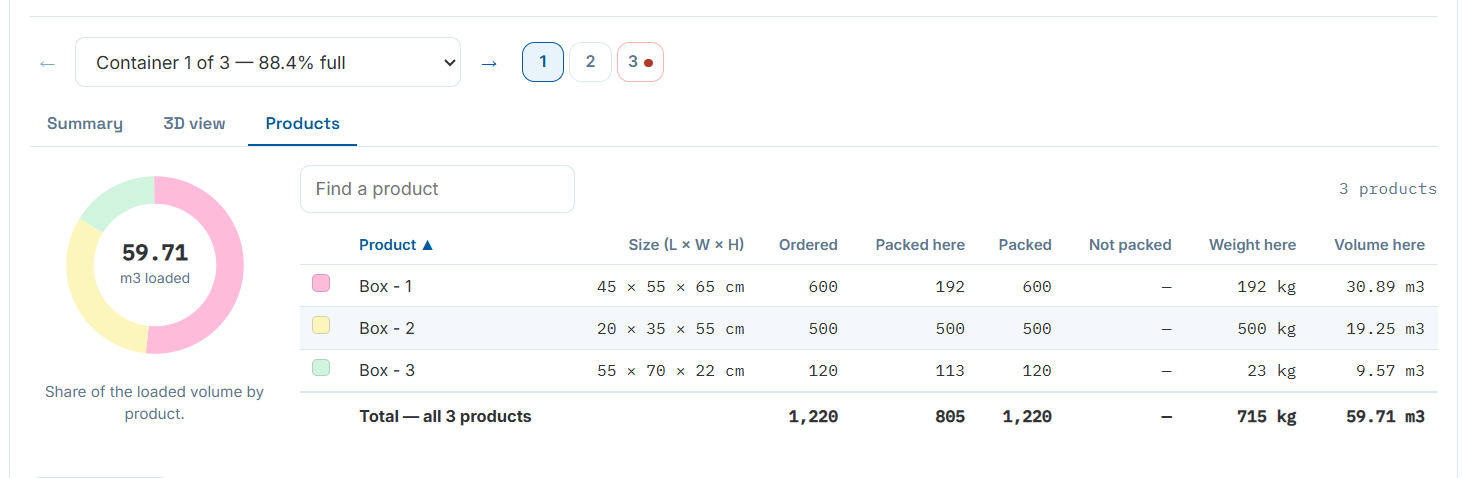
Container navigation, with per-container fill percentage and a Products breakdown.
Summary, 3D view and Products — for each container individually
Switching containers doesn't just change a number. Summary, 3D view and Products all update to show that specific container's own totals, balance check and "what could be better" diagnosis.
Each container gets its own Summary, complete with its own balance diagnosis.