A diagnosis, not just a warning icon
When something's off, Cargo Load Planner explains it in a sentence a planner can act on — not just a red flag. "In 1 container(s) the load sits against the closed end with its centre of gravity outside the band along the length; 'centred' placement brings 1 of them into the band."
It even shows exactly what it tried: "the load lands at 50.0% along the length, inside the band." Click Apply and calculate again and the fix is applied immediately.
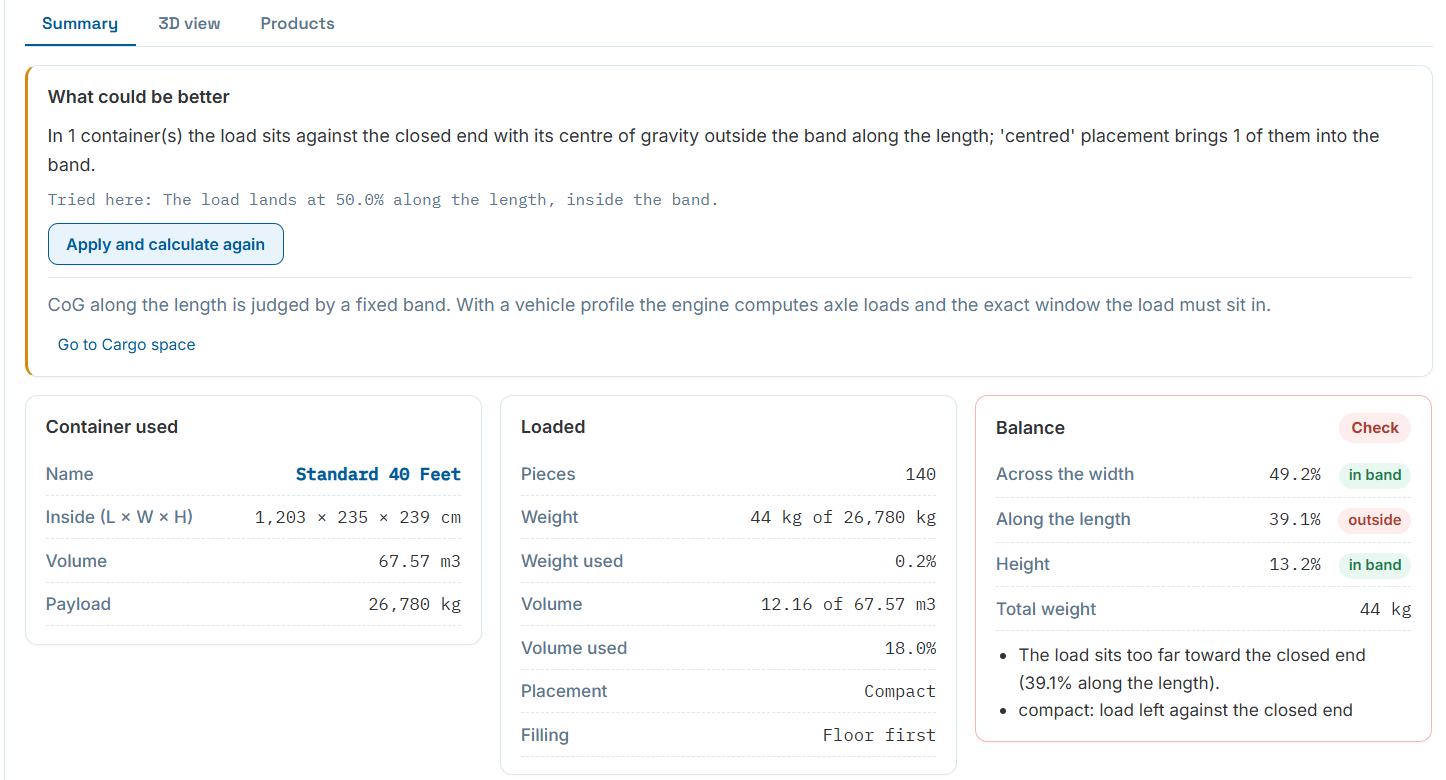
What could be better, with a one-click fix and re-calculate.
The numbers that matter, without digging
Container used shows the name, inside dimensions, volume and payload of whichever container the plan landed on. Loaded shows pieces, weight against the limit, volume against the limit, plus which placement and filling strategy were actually used for this result.
- Weight used and Volume used shown both as an absolute value and a percentage of capacity.
- Placement (Compact, Centred or Spread) and Filling (Floor first, Stack in walls, or Auto) confirm which Calculation Defaults actually applied.
- A one-line link, "Go to Cargo space," jumps straight back to adjust the container or vehicle if needed.
In band, or flagged — on every axis
Across the width, along the length and by height, each axis is checked against the bands set in Calculation Defaults (or the vehicle's own axle math, if one is attached) and marked in band or outside band.
Below the numbers, plain bullet points spell out exactly what's wrong — "the load sits too far toward the closed end (39.1% along the length)" — and why, "compact: load left against the closed end."