What product rows open in
Choose Metric (centimetres and kilograms) or Imperial (inches and pounds) as the default for new product rows. Individual rows can still mix units — see Multiple Units of Measurement — this just sets the starting point.
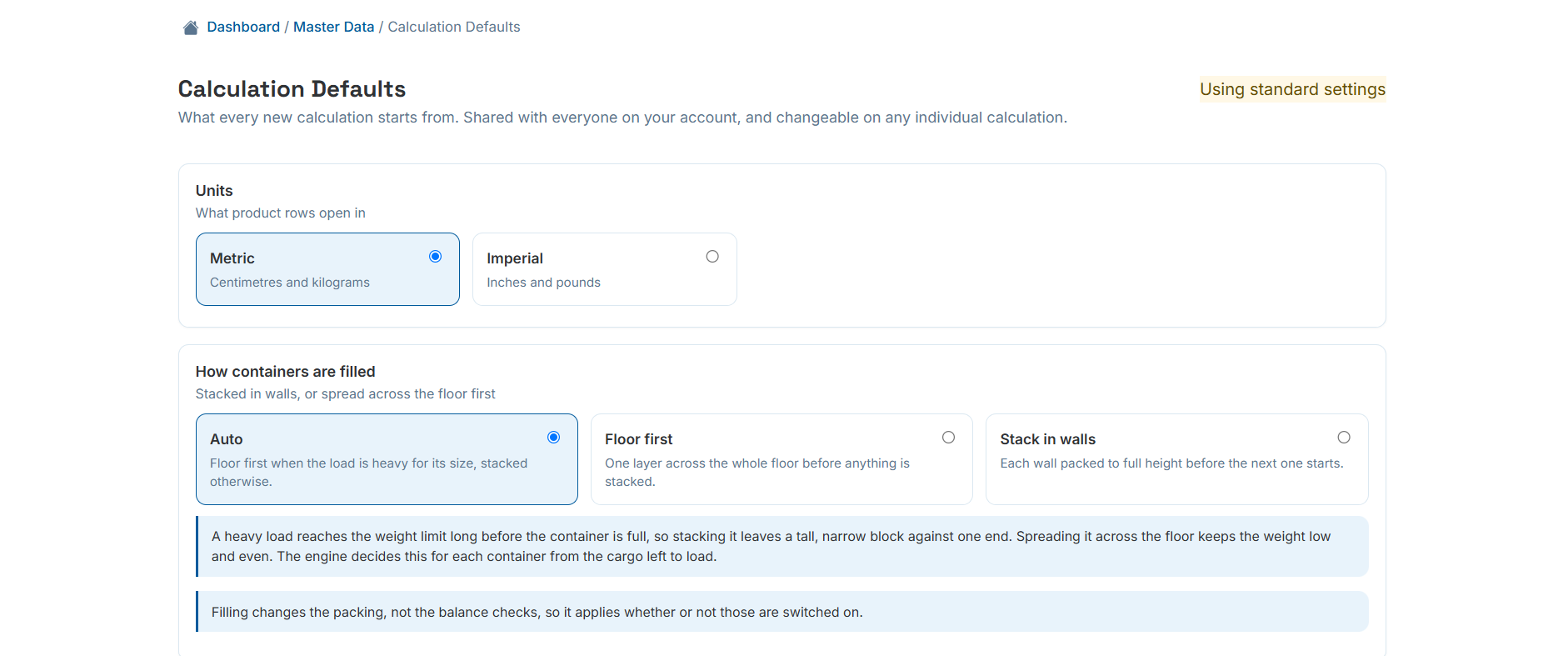
Units, and how containers are filled by default.
Auto, Floor first, or Stack in walls
This controls whether cargo is spread across the floor first or stacked wall by wall to full height before moving on.
Auto (recommended)
Floor first when the load is heavy for its size, stacked otherwise. The engine decides this per container from the cargo left to load.
Floor first
One layer across the whole floor before anything is stacked.
Stack in walls
Each wall packed to full height before the next one starts.
Where the weight sits, and what counts as safe
Turn on "Check the balance of every load" and set a centre-of-gravity band as a percentage of the container for width, length and height. 50% is dead centre; outside the band, the load leans to one side and gets a warning.
Along the length, the band is ignored the moment a vehicle is selected — the engine instead computes axle loads and the exact, stricter window that specific vehicle allows, straight from its Truck & Vehicle Master Data.
- Across the width and along the length: 40–60% keeps the load centred by default.
- Height: below the first figure there's no warning; between the two figures the load is still safe but flagged; above the second it's unsafe. Lower is always better.
- "Also leave a gap at the closed end and at the doors" adds breathing room on both ends when it's switched on.
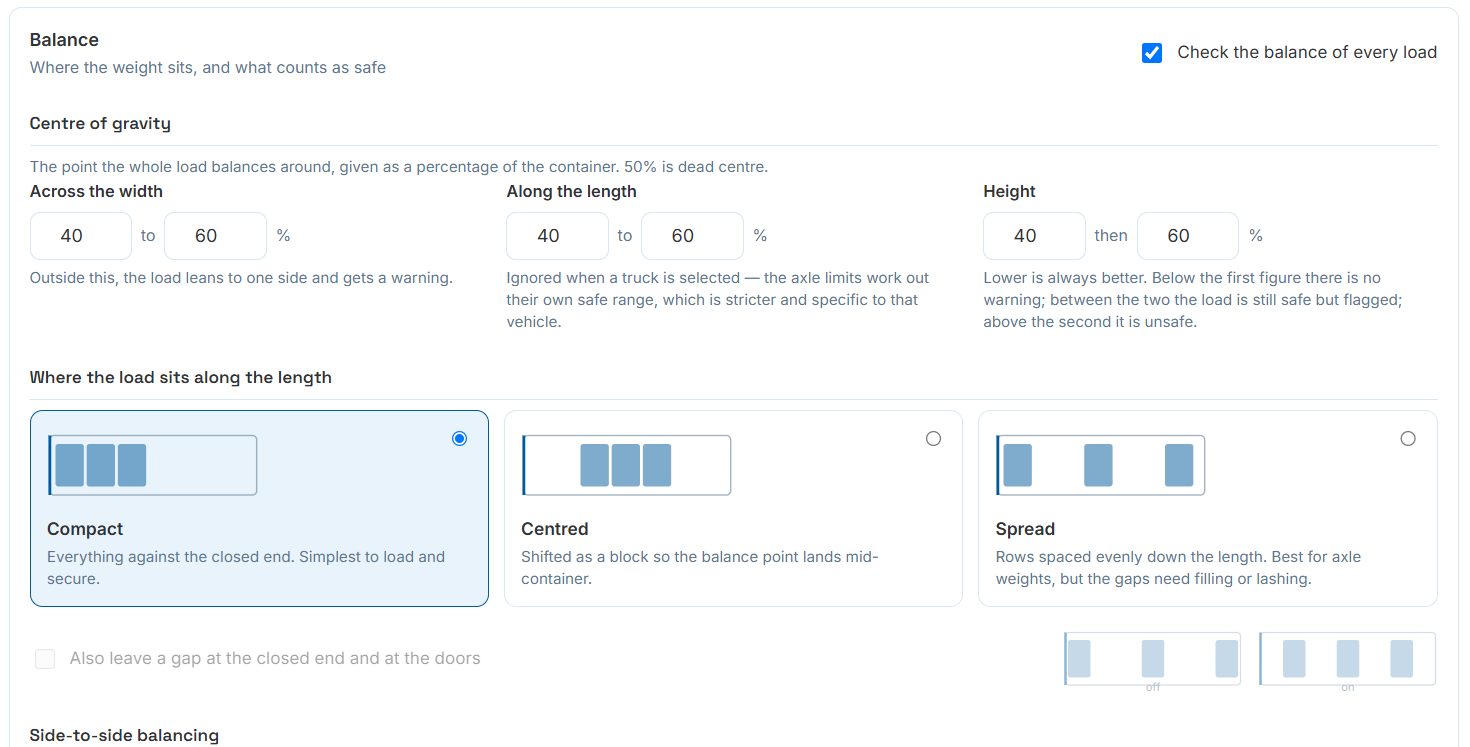
Centre-of-gravity bands, and where the load sits along the length: Compact, Centred or Spread.
Compact, Centred, or Spread
Independent of filling strategy, this decides where along the length the load is positioned once it's packed.
Compact
Everything against the closed end. Simplest to load and secure.
Centred
Shifted as a block so the balance point lands mid-container.
Spread
Rows spaced evenly down the length. Best for axle weights, but the gaps need filling or lashing.
Mirror rows to even out the load across the width
When switched on, rows are mirrored so weight balances left-to-right. "Only when already out of balance" leaves a load that's already within the width band untouched, and a minimum-gain threshold avoids reshuffling a load for a change nobody would notice.
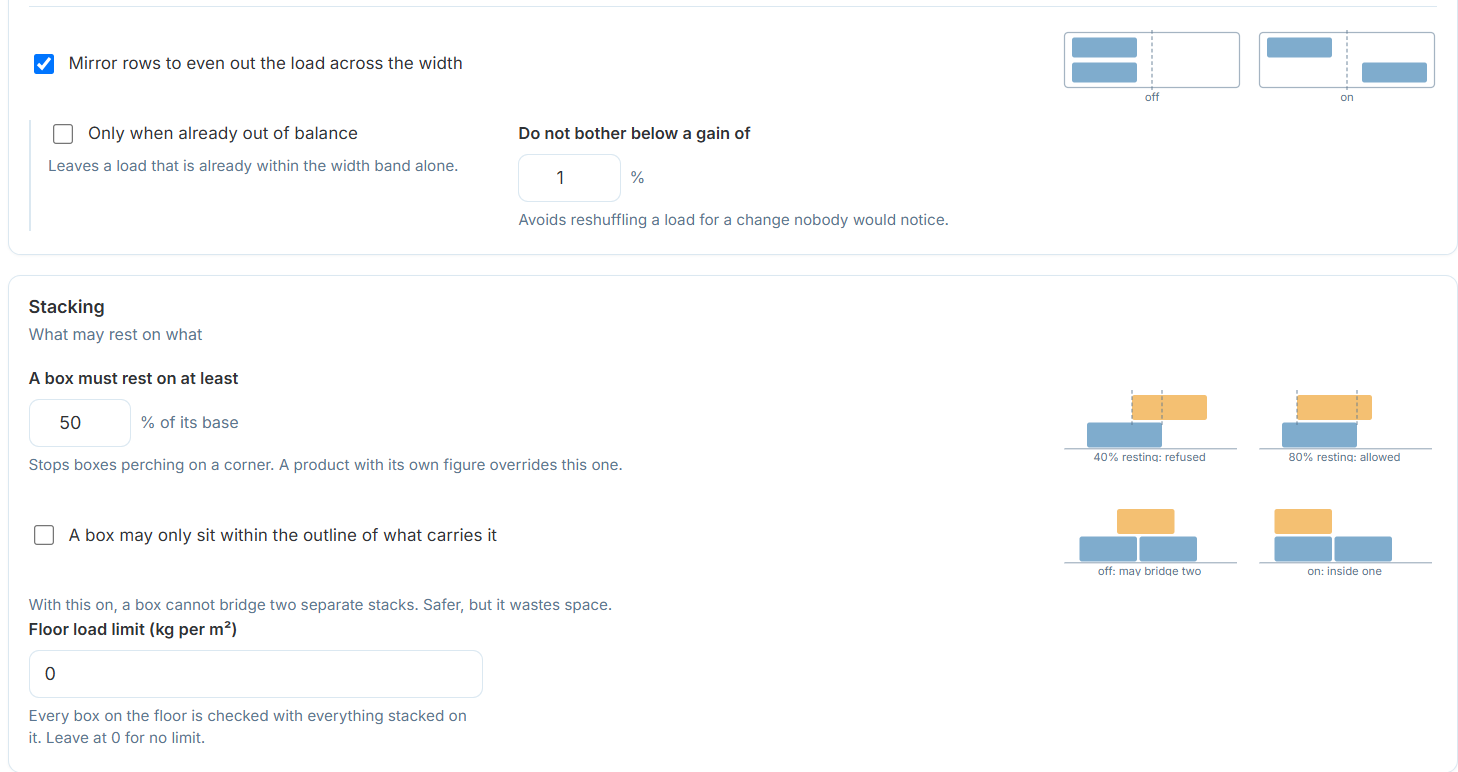
What may rest on what
A box must rest on at least a set percentage of its base — the default stops boxes perching on a corner, and any product with its own figure (see Product Advanced Settings) overrides this one.
"A box may only sit within the outline of what carries it" stops a box from bridging two separate stacks — safer, but it can waste space. A floor load limit in kg per square metre caps what the floor itself is checked against, including everything stacked on top.
- Default minimum support: 50% of the base below.
- Bridging two stacks: off by default, so a box may span two piles unless you turn this on.
- Floor load limit: leave at 0 for no limit.
Changes what the result lists, not what gets loaded
Three thresholds fine-tune what the results screen bothers to report, without changing how the load itself is packed.
- Smallest gap worth listing: gaps along the length below this (default 50 mm) aren't suggested as filler positions.
- Smallest side gap worth listing: narrower side gaps (default 150 mm) are still reported as empty space, just not as places to pack out.
- Least free length worth spreading: below this much spare length (default 500 mm), Spread is skipped and the load stays compact.
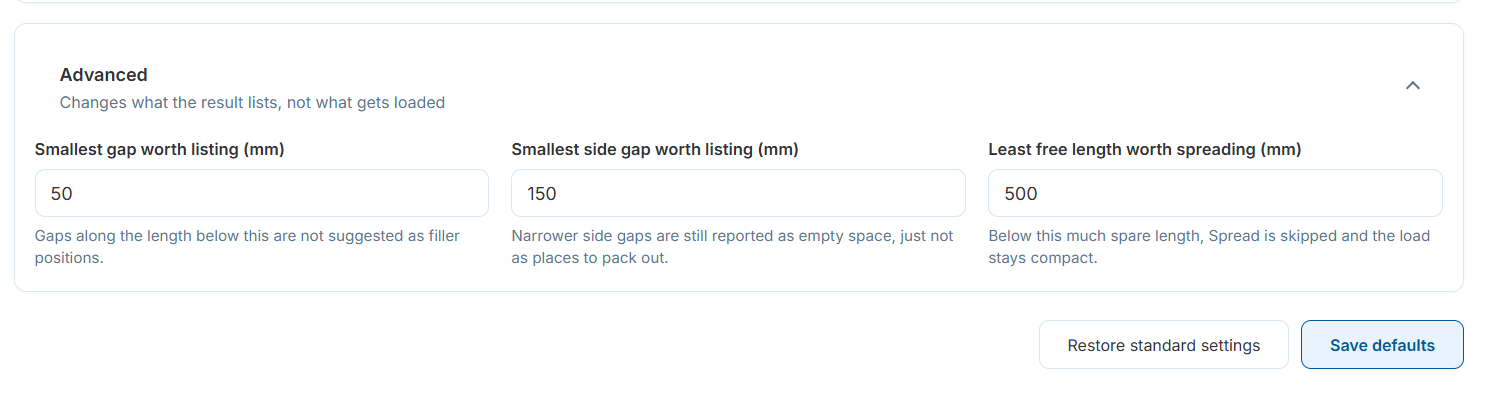
Advanced thresholds, plus Restore standard settings and Save defaults.